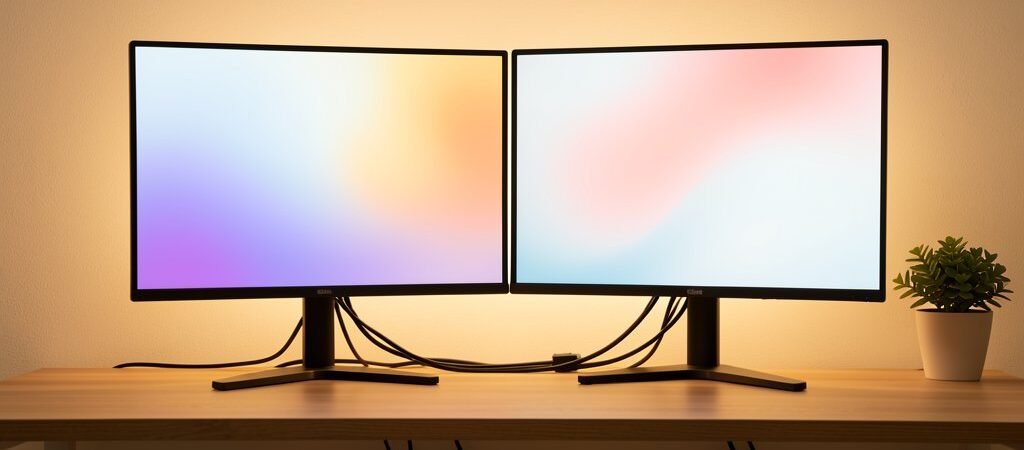
A dual monitor setup is one of the most impactful hardware upgrades available to knowledge workers. The productivity gains are not marginal — research consistently shows that adding a second screen reduces task-switching time, decreases cognitive load when working across multiple applications, and measurably increases daily output for work that involves referencing information while writing, coding, or managing projects.
According to Inc. Inc. Magazine’s case for multi-monitor setups in knowledge work Magazine’s coverage of the University of Utah monitor research, dual-monitor users completed tasks 44% faster with two screens compared to one — and reported significantly lower frustration levels. The efficiency gains were most pronounced for document-heavy work, data analysis, and any task that required switching between reference material and an active document.
Who Benefits Most From Dual Monitors
- Writers and editors — research on primary screen, document on secondary
- Developers and designers — code editor on one screen, browser/output on the other
- Project managers — task board on one screen, communications on the other
- Finance and data professionals — spreadsheets extended across both screens
- Remote workers on calls — video call on one screen, notes or shared documents on the other
The Two Dual Monitor Configurations
Configuration 1: Two Equal Monitors Side by Side
Both screens are the same size and resolution. The primary monitor sits directly in front of you; the secondary is to the left or right at a slight angle (15–30 degrees). Best for work that regularly requires two full applications open simultaneously.
Configuration 2: Primary + Vertical Secondary
The main monitor is horizontal (standard orientation); the secondary monitor is rotated 90 degrees to portrait/vertical orientation. Excellent for reading long documents, code, emails, or reference material — vertical screens display significantly more text without scrolling. Writers and developers find this configuration particularly effective.
Positioning for Physical Comfort
Poor dual monitor positioning causes neck strain that kills your ability to sustain long sessions. Follow these rules:
- Both monitors should be at the same height — top of screens at or just below eye level
- The primary monitor should be directly in front of you, not to the side
- Secondary monitor should be adjacent with minimal gap between screens
- Angle both screens slightly inward (like a wide V) so your neck stays neutral when looking at either
- Total distance from eyes to screens: 50–70cm (arm’s length)
Monitor Recommendations by Budget
Budget (Under €200 each)
- AOC 24B2XH — solid 1080p IPS panel, thin bezels for clean dual setup, good colour accuracy
- LG 24MK430H — affordable, reliable, slim bezel, widely available
Mid-Range (€200–€400 each)
- Dell P2422H — professional IPS panel, pivot/rotate capability (great for vertical secondary setup), USB hub built in
- LG 27UK850 — 4K IPS, excellent colour, USB-C connectivity, works beautifully as a primary screen
Premium (€400+ each)
- LG UltraWide 34WN80C — a wide single monitor that replaces the need for a second screen for many workflows
- Apple Studio Display — if you are on a Mac ecosystem, the quality leap is significant
Essential Software for Dual Monitor Productivity
Windows
- Microsoft PowerToys FancyZones — free, lets you define custom snap zones across both monitors so windows always go exactly where you want them
- DisplayFusion — advanced multi-monitor management, individual taskbars per screen, wallpaper management, hotkeys for moving windows between screens
Mac
- Moom — excellent window management with keyboard shortcuts for precise placement across screens
- Magnet — simpler option, drag windows to screen edges to snap them into predefined positions
Common Dual Monitor Mistakes to Avoid
- Unmatched monitor heights — one screen higher than the other forces constant head tilting. Use a monitor arm or stands to equalise heights
- No window management system — without snap/zone tools, applications drift randomly between screens, defeating the organisational purpose of a dual setup
- Using the secondary monitor for distractions — if your second screen permanently displays social media, news, or messaging, it is hurting rather than helping your focus
- Mismatched resolution or colour profiles — if monitors have significantly different brightness or colour temperature, your eyes constantly readjust. Calibrate both to match as closely as possible
A dual monitor setup takes 30 minutes to configure properly and pays back that investment within the first productive workday. Position it correctly, manage your windows intentionally, and assign a dedicated purpose to each screen — and it becomes one of the most impactful permanent changes you can make to your workflow.